
Completing Required Training During a Shift
Once you have started started a shift as an FTO, your shift will automatically be assigned training. Navigate to the required training for the day by clicking on Training Tasks.

This will show you all of the training that you (or your trainee) must complete for this day.

To fill out the training, click on "Start" next to the item that requires training.
Missing Items
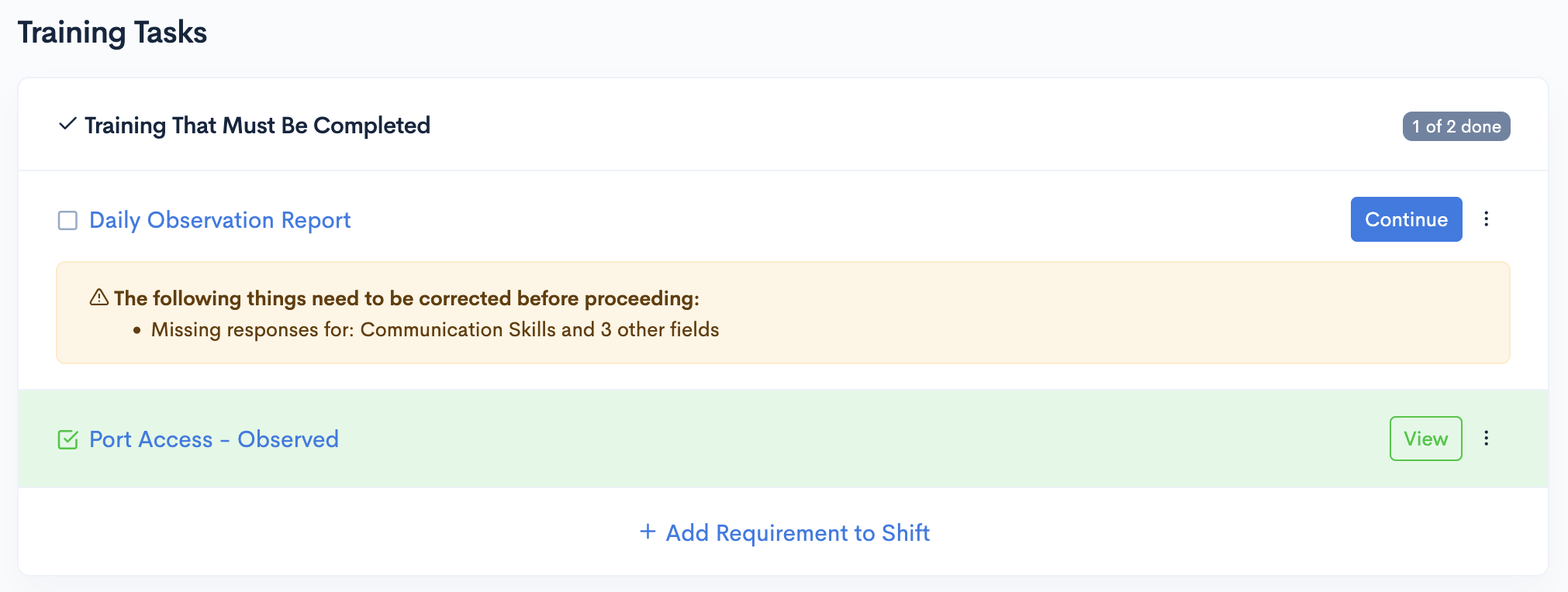
Pipeline will automatically evaluate what items are required to be filled out within forms. When items are missing, a prompt will be displayed to show you what is missing.
Unable to Complete
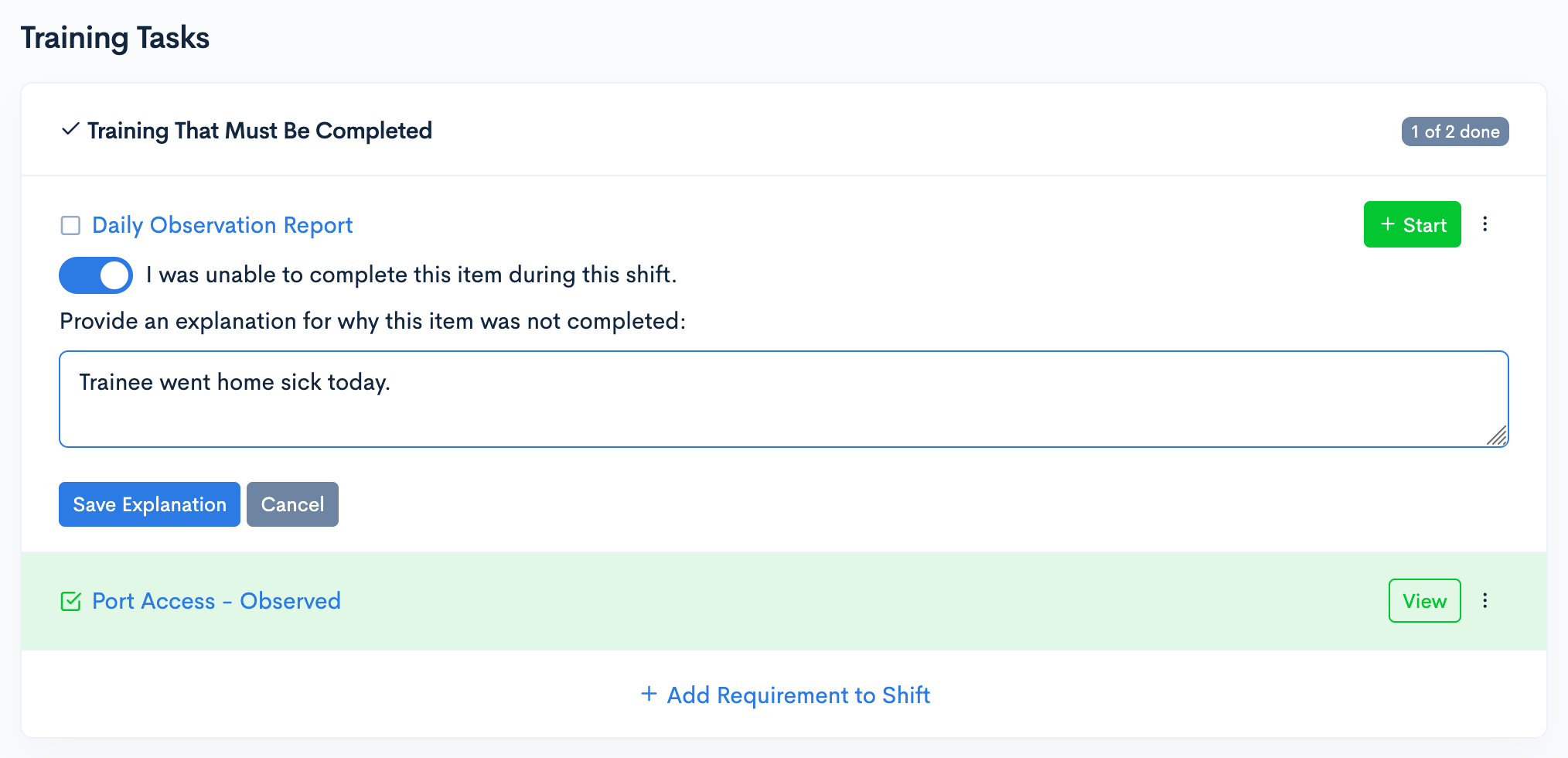
If you are unable to complete a required training item for the day:
- Click on the 3 dots next to "Start"
- Click on "Unable to Complete"
- Check the toggle that states "I was unable to complete this training item during this shift"
- Provide a comment explaining why you were unable to complete this training item.
- Click "Save Explanation"
Submitting Shifts for Review
Once you have completed all of the required training (or marked the appropriate items as "Unable to Complete"), you can submit the shift:
- Click on "Submit Shift" on the top right corner of the required training box
- Enter any final comments you wish to attach to the shift
- Click "Submit Shift"
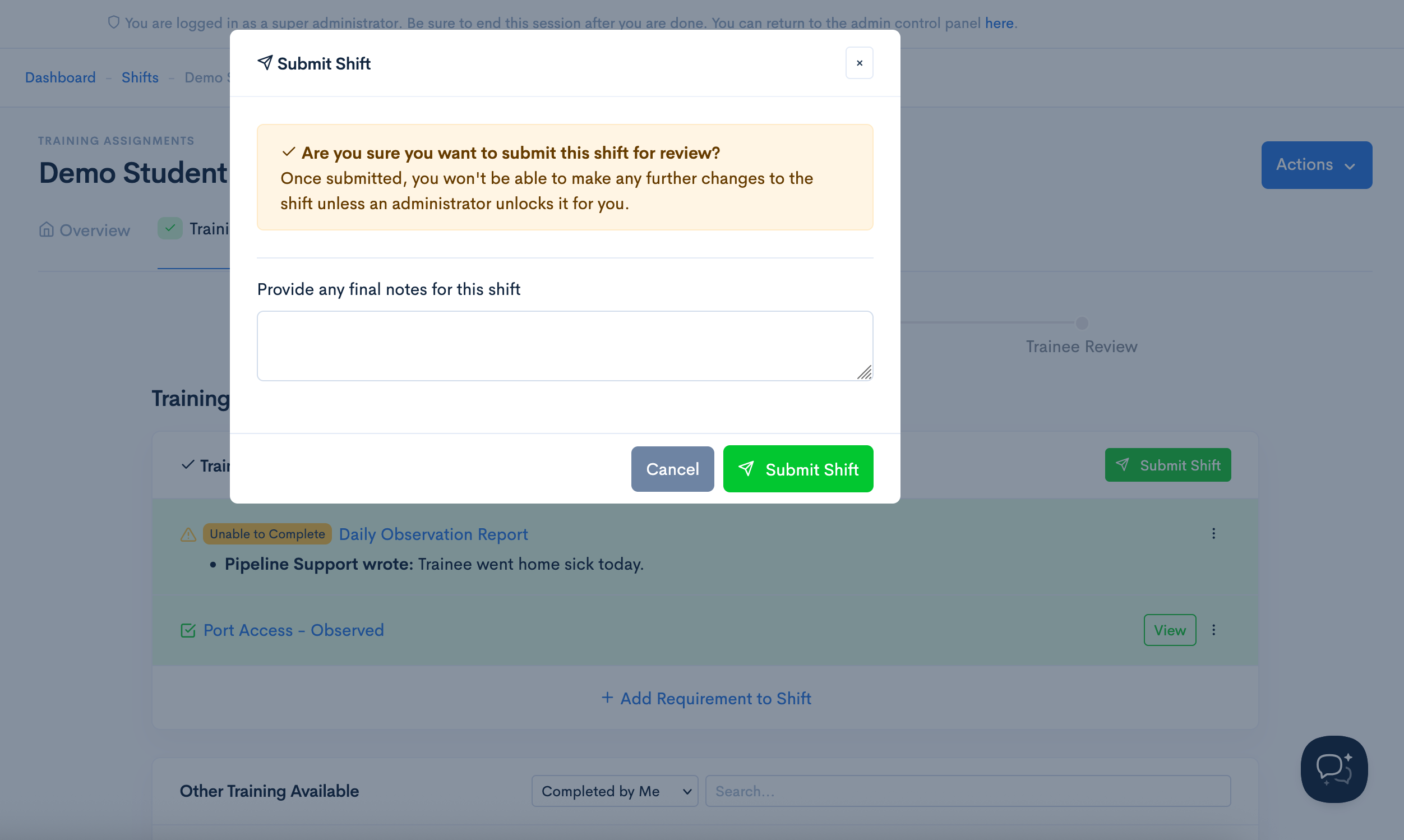
This will then move the shift to the first step of the review workflow & notify the appropriate users.